

Team Tips
Team rewards, organised the way your team actually works.
What is Team Tips?
Team Tips lets employees receive and share digital tips as a team. Tips are split according to agreed rules: either equally or with a different weighting per job position, taking into account which members are active at the moment the tip is given.
This way, a tip can recognise the collective effort of a shift or a department, while every member sees their own share.
Who can create a team?
The same basic process applies to both individual users and businesses. Every team has a person in charge (Leader). If a business prefers not to organise its teams itself, users can create them instead.
Businesses can also bulk-import via Excel: companies, teams, positions, departments, shifts and weekly employee schedules, for faster initial setup and management.
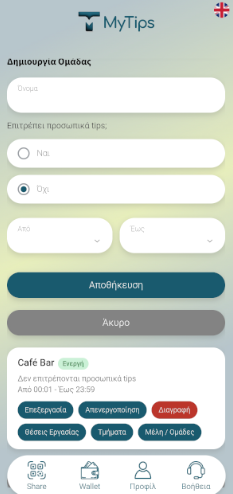
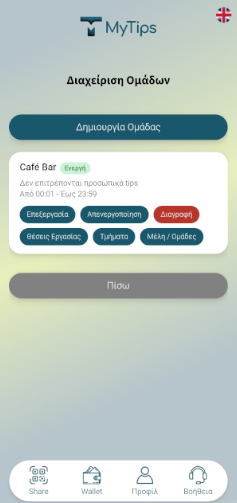
Create a team and choose whether personal tips are allowed
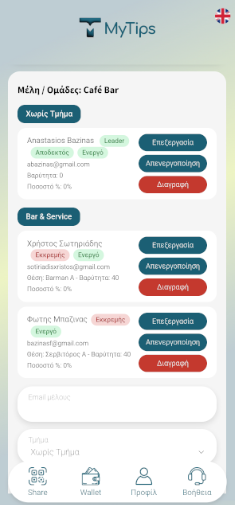
The Leader creates the team and, with the members' agreement, decides whether individual tips are also allowed. This choice determines how each member's personal QR Code and NFC wristband work during working hours.
Departments, positions and shifts
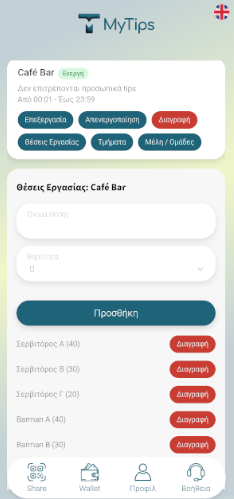
A team can be organised into one or more departments, depending on the needs of the business. The Leader adds the job positions and, where needed, the corresponding shifts. This way, the split of tips can follow how the work is really organised.
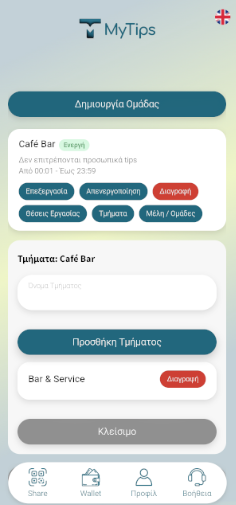
How is each member's share calculated?
Each position is given a participation weighting, which the employee must accept. The final percentage is not necessarily fixed: it is calculated automatically from the weightings and the number of members who are active at that moment.
Alternatively, members can agree on an equal split. When the make-up of the active team changes, the percentages are readjusted according to the agreed rules.
Example
If two active members have the same weighting, they share equally. If their weightings differ, each one's percentage is proportional. This example explains the logic; it is not a specific setting of the app.
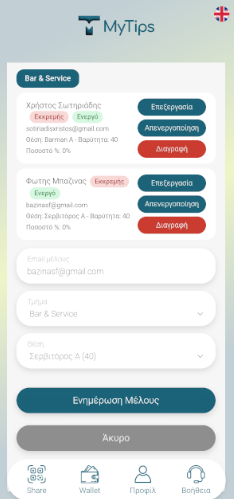
Adding employees
To add an employee, you enter their email, department, position and the corresponding weighting. The business can optionally set a weekly schedule and shifts.
With a schedule enabled, the employee's participation in their department is switched on and off automatically according to their working hours. In case of overtime, the active shift can be extended.
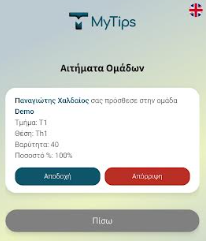
Invitation and acceptance
Each employee receives an invitation notification that clearly sets out the team, department, position, weighting, the variable participation percentage and whether personal tips are allowed.
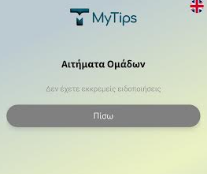
Participation is activated only after the user accepts the invitation themselves.
What can the Leader do?
The Leader can take part in more than one team and either receive tips or act purely as an administrator. They can also appoint another user as the new administrator.
Only the Leader can deactivate a member. For example, if someone takes an unplanned day off, the Leader can temporarily deactivate that employee or change their shift. Their share is automatically redistributed among the other active members, without those members having to accept again.
How do the QR Codes and NFC work?
Teams without individual tips during work
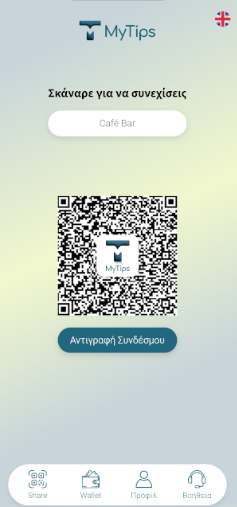
A shared QR Code is created for the team. During working hours, each member's personal NFC wristband works as a team wristband, so tips go to the team. Once working hours end, personal use of the QR Code and NFC for individual tips is switched back on.
Teams that also allow individual tips
Each employee keeps their personal QR Code and NFC wristband for individual tips, and can also open the team's shared QR Code on their phone. The business can also place the team QR Code on a table stand with NFC.
This way, customers can choose whether to reward a specific employee or the team as a whole.
What does each employee see?
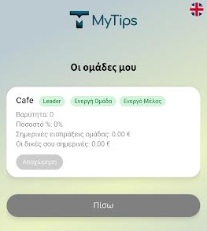
The team section shows live information about the team the employee belongs to, the active status of the team and of the user, their weighting, their participation percentage, the team's total tips for the day and the amount that is theirs.
Detailed overview in the Wallet
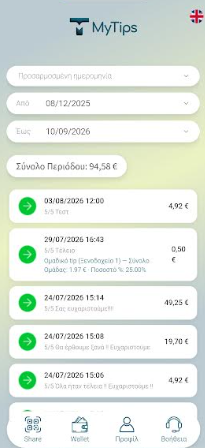
The Wallet shows team tips in real time. Each entry displays the date and time, rating, a team-tip indicator, department, total amount, the employee's participation percentage and the amount that is theirs.
What does a team gain from Team Tips?
- Agreed, easy-to-understand rules for splitting tips.
- Adapts to positions, departments, shifts and who is actually on duty.
- Personal and team tips can be combined.
- Every employee can see their own participation.
- Easier organisation for businesses with many teams or shifts.
FAQ
Does the business have to create the teams?
Not necessarily. The app also allows regular users to create a team.
Can all members have the same percentage?
Yes, as long as an equal split is agreed.
What happens when an employee is absent?
The Leader can change the employee's participation or shift. The percentages are automatically redistributed among the active members.
Can a customer leave a tip for just one person?
Yes, as long as individual tips have been enabled for the team.
How does an employee know how much they are owed?
From the team overview and the detailed Wallet, which show their percentage and the corresponding amount for each team tip.
The full version of Team Tips is expected to be available in mid-November*